

A WordPress backup stuck at 45 percent is usually not stuck. The bar you are watching is drawn by your browser. The job it describes runs on your server, and when the two lose contact your bar stops while the work carries on without it.
Three different things look identical on that screen: a job still working, a job that finished while nobody was looking, and a job that never started at all. This guide tells them apart. Each one has a different next step, and only one of them asks anything of you.
- Is it working, or is the page just not being told?
- What the percentage on the screen actually is
- The scheduled backup that never started
- Reading the error code
- Where each stage runs out of room
- Cancelling without losing the evidence
- The one retry, and what to change before it
- Verification
- AIOWS Backup Manager
- Frequently asked
- Sources
Is it working, or is the page just not being told?
Before you cancel anything, answer one question: is there still a job?
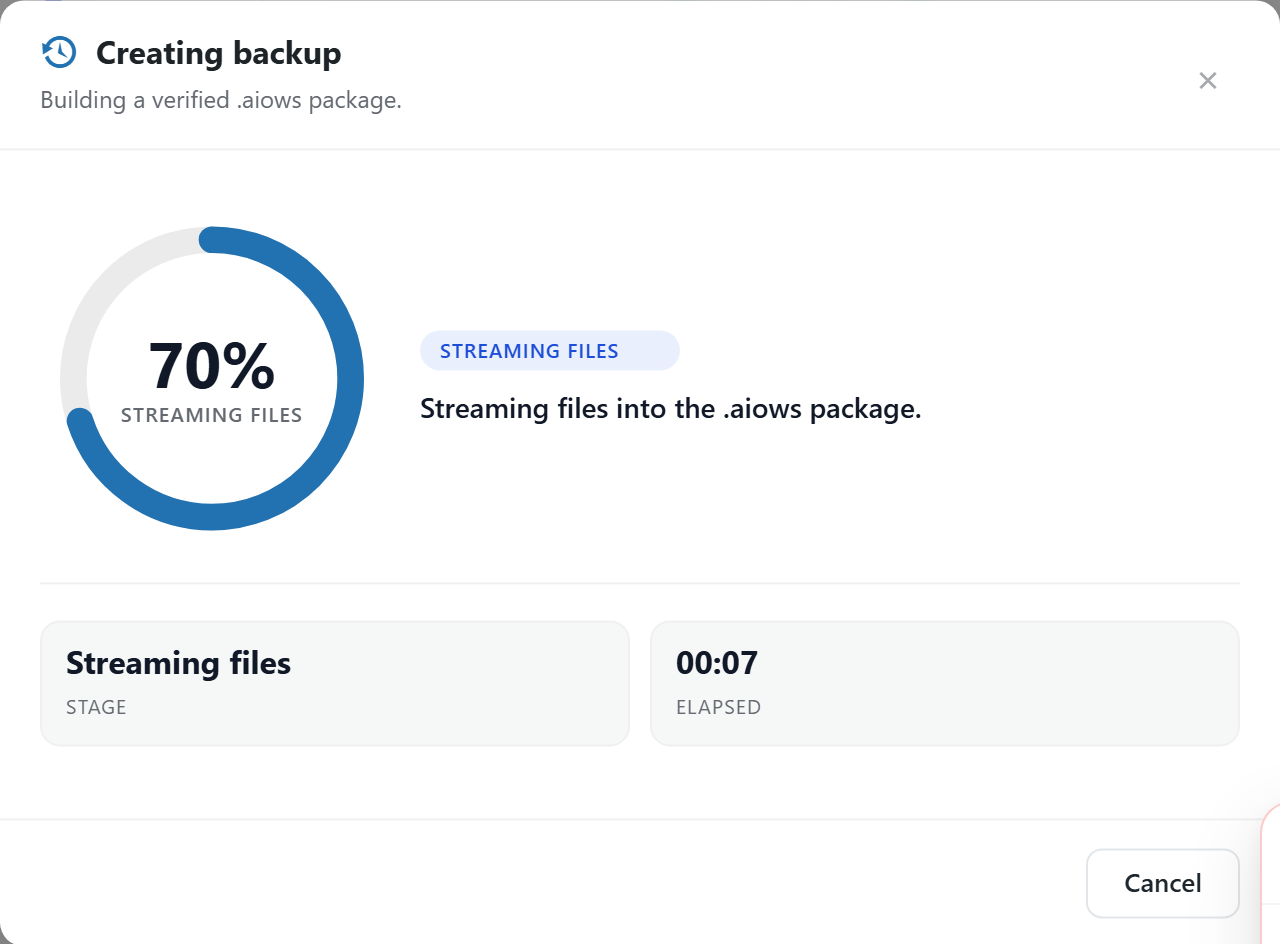
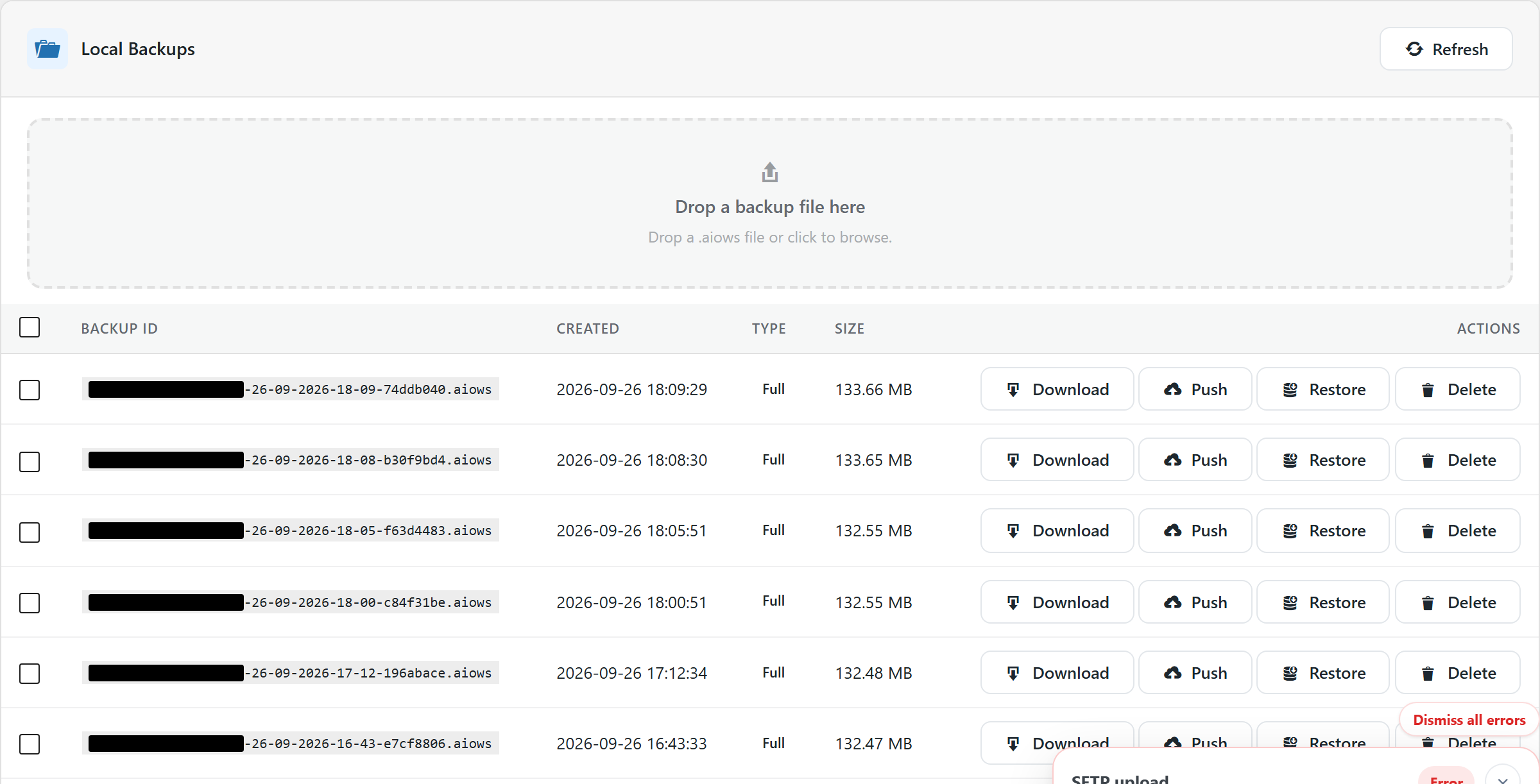
Close the progress window and open the backups list.Your server writes that list when a package finishes. Your browser draws the bar while it waits. If your backup is in the list, it is done, whatever the bar said the last time you looked.
That is the ordinary ending, not a rare one. A window that sits at 45 percent in the database stage, does not move for a long time, and then reaches 100 percent after you have given up and closed the tab — you never see the end of it. You find the backup by opening the list, not by watching the screen.
Look at whether anything is still changing.You have two signs, and they disagree usefully:
- your package file on disk is growing, or the elapsed time is still climbing — something is working;
- the file size, the stage and the elapsed time have all stood still for many minutes — your worker has probably stopped.
Do not press Start again to find out.A second job does not replace your first. It competes with it for the same disk, the same database and the same PHP processes, and it makes the first failure harder for you to read.
What the percentage on the screen actually is
The number is not a measurement of your job. It is the last message your browser managed to collect.
Your backup runs as a detached worker on the server. That worker writes its state — stage, progress, elapsed time — as it goes. The page you are looking at asks for the state every few seconds and redraws the bar from the answer. Two separate things, joined by an HTTP request that can fail on its own.
When that request stops arriving, your bar freezes at the last number it was given, and the worker never learns that you stopped listening. Your laptop going to sleep will do it. So will a tab your browser throttles in the background, a proxy that closes an idle connection, or a security plugin that starts rate-limiting the endpoint.
The plugin says so itself. Its error catalogue lists AIOWS-BK-E2000as “The browser lost contact with the backup progress endpoint. The backup may still be running on the server — check the backups list in a moment.”It is telling you about your page, not about your backup.
Long stages hold you on one number, and that is not a fault. A database stage draining many tables, or a file stage walking a directory of thousands of small files, reports rarely because each unit of work is small. Your bar can sit still for several minutes and be perfectly healthy.
So the percentage answers what your page last heard. The backups list answers whether you have a package. Only the second question is worth asking.
The scheduled backup that never started
This one looks different and is far more common than it should be. You save the schedule, your next run time comes and goes, and nothing happens. Not late. Never.
WP-Cron is not cron.It has no timer. WordPress checks for due tasks when somebody visits your site, and then fires a request at its own wp-cron.phpto run them. If your site is quiet, that moment may never arrive.
Four separate things produce the same silence in WordPress, and they need different fixes:
- your host refuses the request.
wp-cron.phpanswers 401 or 403, so nothing scheduled ever runs. - your site cannot reach itself.The loopback request fails outright — a DNS or firewall arrangement that stops your server calling its own hostname.
- nothing is wrong and nothing runs.
wp-cron.phpanswers normally; your site has not had enough visits to trigger it. DISABLE_WP_CRONis set with nothing behind it.Someone turned off the built-in scheduler intending to add a system cron job, and the cron job was never added or has since stopped.
With Backup Manager installed and a schedule enabled, that fourth one does not stop your backups.The module watches for its own overdue event and calls wp-cron.phpitself when it finds one, at most once every five minutes. So the constant on its own does not leave you without backups.
It does not rescue the other three, and it does not rescue a quiet site either: that call is made while a page is being served, so if nobody arrives, nothing triggers it. And if wp-cron.phpanswers 401 or 403, the module’s call meets the same refusal WordPress does.
Backup Manager’s Site Health check, Scheduled tasks, separates all four and names which one you have. It also tells you the thing that matters while you sort it out: “Backups you start yourself are unaffected.”A schedule that never fires does not break the backups you run by hand.
The fix is a real cron job.Add one on your server, every fifteen minutes:
*/15 * * * * cd /path/to/wordpress && /path/to/php -q wp-cron.php >/dev/null 2>&1Then tell WordPress to stop trying on visits, in wp-config.php:
define('DISABLE_WP_CRON', true);Order matters. Set the constant only once the cron job runs, or you will turn off the visit-driven scheduler and have nothing in its place.
Where that line goes depends on your panel, and the two you are likeliest to meet differ.
cPanel: Advanced → Cron Jobs.Paste the whole line, schedule and command together, into the command field under Add New Cron Job. It then appears under Current Cron Jobs, which is where you confirm it took.
Plesk: Websites & Domains → Scheduled Tasks → Add Task.Plesk splits the two, so paste only the command; the five schedule fields go in Cron style. Choose Run a command. Fetch a URLaimed at your own wp-cron.phplooks easier — no PHP path, the step most people get stuck on — but it goes over HTTP and meets the same refusal as the first cause above. If your host answers 401 or 403 there, the fetch fails where a command would have worked.
Reading the error code
When your job does stop, it stops with a code. The codes are stable strings, so one you find in a log a year from now still means what it means today.
| Code | What it means | Where to look |
|---|---|---|
AIOWS-BK-E1000 | The start request timed out before the server returned a job ID. | Host restrictions on detached processes; PHP-FPM request limits. |
AIOWS-BK-E1001 | The backup could not be started; no job was created. | The browser console and the server error log, at the moment you pressed Start. |
AIOWS-BK-E1002 | The worker could not be launched, and the inline fallback was unavailable. | Disabled proc_open/shell_exec; a PHP CLI binary the host does not expose. |
AIOWS-BK-E2000 | The browser lost contact with the progress endpoint. | Nothing. Check the backups list — the job may have finished. |
AIOWS-BK-E2001 | The progress could not be read from the server. | A cache or security layer in front of the admin-ajax or REST endpoint. |
AIOWS-BK-E3000 | The job stopped sending progress and was marked stalled. | The host’s process limits: the worker was probably killed. |
AIOWS-BK-E4000 | The backup was cancelled. | Whoever cancelled it. Nothing failed. |
AIOWS-BK-E5000 | The worker stopped on a PHP fatal error — out of memory, or a host limit. | memory_limit, max_execution_time, and the PHP error log. |
AIOWS-BK-E5001 | The worker stopped before the backup finished. | The same place. The host terminated it. |
AIOWS-BK-E6000 | The backup finished and failed its integrity check. | Disk, and the destination. The package is not trustworthy. |
AIOWS-BK-E9000 | Unknown. | The job’s own event log, then the PHP error log. |
Two of these are not failures. E2000is your page losing the plot, and E4000is you. The rest tell you where to look, which is what a code is for.
Where each stage runs out of room
Your backup is not one operation. It is four, and they fail on different resources.
| Stage | What it is doing | What runs out first |
|---|---|---|
| Database export | Reading tables row by row and writing SQL. | Memory and time. A single enormous table — wp_postmeta, an Action Scheduler table — can dominate the whole run. |
| File walk and archive | Walking the directory tree and compressing. | Time, then disk. Thousands of small files cost more than a few large ones. |
| Local write | Assembling the package on disk. | Disk space. The package and the site need room at the same time. |
| Remote upload | Sending to Google Drive, OneDrive, FTP or SFTP. | Time, network and the destination’s quota. |
Knowing your stage narrows the cause to one column of that table before you change anything. A run that dies in the database stage is not a disk problem, and raising memory_limitwill not help you if the job stopped during an upload.
If your stage is the database and your site is large, one table is usually the answer rather than the limit — see why a WordPress database growsbefore raising anything. If it is disk, the package size is the place to start: a backup that fails because the disk is full.
Cancelling without losing the evidence
Cancelling is often right. Cancelling first and looking afterwards is not: your first failure is the informative one, and a second run overwrites the conditions that caused it.
The progress window shows two things worth writing down, and they are the two that disappear when you close it:
- the stage it stopped in;
- the elapsed time it had reached.
Note the time of day as well, from your own clock — the window does not show one — so you can find the matching lines in the server logs afterwards.
Three things you might expect to find there are simply not displayed: the backup ID, the amount processed, and the size of the partial package. The window carries a stage and a timer, so do not plan on copying an ID out of it.
Then cancel, and leave the temporary files alone. A partial package that a worker still owns is not safe for you to delete: deleting it turns a slow job into a failed one and removes your evidence at the same time. Retention clears old packages on its own.
The one retry, and what to change before it
One retry, after one change. Not three retries hoping.
Make room first.Check your free disk against the size of your last successful package. Your backup needs room for the new package while your site keeps running.
Then narrow the job.Run a Database Onlybackup, then a Files Onlybackup. Whichever one fails is the half with your problem, and each is small enough to finish where your full backup will not. Once you know which half, the guides for a database-only backupand a files-only backupcover the detail.
Exclude what you do not need to back up.Old archives inside wp-contentare the classic case: your backup includes last month’s backups and grows every run until it cannot finish. You can usually leave out cache directories and generated media folders as well.
Change one limit, not all of them.If your code was E5000or E5001, raise memory_limitor max_execution_time— one of them, by one step, and run it again. Raising everything at once hides which limit was binding and puts load on your server for nothing. Raising the memory limit safelyand maximum execution time exceededcover the two individually.
Keep your last verified recovery point.Do not let a fresh package replace the last backup you have actually restored, until you have restored the fresh one too. A package that exists is not a package that works.
Verification
Your backup is finished when you have restored it somewhere, not when a message says 100 percent.
| Check | Expected |
|---|---|
| The package appears in the backups list, with its backup ID, its creation time, its type and its size. | Yes, and the size is in the same range as previous successful runs. There is no duration column and no destination column to check. |
| The next scheduled run appears, and Site Health reports scheduled tasks as running. | Both. A schedule with no working scheduler is not a schedule. |
| Restore the package into a staging site or a local copy, and open the front page and one inner page. | Both load, and the content matches the day of the backup. |
| Point the remote destination at wrong SFTP credentials and start one backup. | It fails at the transfer stage and says so: Cloud upload failed: SFTP authentication failed.The local package still completes and is saved. |
That fourth row was run, and two things it showed are worth knowing before you run it yourself.
The local package survives a failed transfer.With a remote destination the package is built on disk first and sent afterwards, so a refused login costs you the copy at the far end and not the backup. That is the design, and it is why a failed upload is not a failed backup.
The evidence does not last.The failure appears as a floating notice and is gone on the next page load. It is not written into the backups list, and the remote list holds no row for it. No AIOWS-BK-Ecode is shown either, although the catalogue has eleven of them. If you run this check, read the message while it is on screen, because afterwards the interface will not tell you it happened.
A verification table whose every row is expected to pass only proves that you can read.
If the restore is the part that goes wrong rather than your backup, that is its own subject: a WordPress restore that fails or hangs. And if you have never tested one, verify a WordPress backupis the place to start.
How AIOWS helps:
AIOWS Backup Manager
Backup Manager runs your backup and, more usefully here, tells you which of the three situations above you are in.
It names the stage and the code.The progress window shows the stage and the elapsed time — the two things worth recording before you cancel, and the two that go when the window does. When your job stops, it stops with one of the eleven stable AIOWS-BK-Ecodes in the table above rather than with a generic failure message.
It checks the scheduler rather than trusting it.Backup Manager registers a Scheduled taskstest in WordPress Site Health. The test tells the four causes above apart and names yours, then prints a cron line built for your install, with the PHP binary it verified. Where it cannot verify that binary it says so and leaves a placeholder, rather than handing you a command that would fail silently at three in the morning.
It covers for the fourth cause rather than only reporting it.With a schedule enabled it calls wp-cron.phpitself whenever its own event is overdue, so that constant with no cron job behind it does not quietly stop your backups.
It narrows the job for you.Full, Database Onlyand Files Onlyare one dropdown, and your exclude paths are one box, one path per line. Local, Google Drive, OneDrive and FTP/SFTP are destinations you can add or remove without rebuilding your schedule.
It shows you what a restore actually did.The Restore Center keeps a receipt and a report for each one, so “it restored” becomes a record rather than your memory of one.
Its limits, stated plainly. The module cannot raise your host’s PHP limits or your disk quota. The call it makes to the scheduler goes out while a page is being served, so it cannot fire on a site nobody visits; there it can only tell you that is what is happening and hand you the cron line. And it cannot stop a shared host from killing a long-running worker. Those three belong to your hosting provider.
Explore AIOWS Backup ManagerCompare AIOWS plans
Frequently asked
The bar has not moved in ten minutes. Is the backup dead?Not necessarily. Close the window and look at your backups list. If your package is there, it finished. If it is not, check whether the file on disk is still growing before you cancel.
Can I close the tab while a backup runs?Yes. The worker runs on your server, not in your browser. Closing the tab stops your progress bar, not your backup.
Why did my scheduled backup not run at all?Most likely nobody visited your site near the scheduled time, because WordPress’s built-in scheduler runs on visits rather than on a clock. Site Health’s Scheduled taskscheck will tell you which of the four causes you have.
Is it safe to delete the leftover files from a failed backup?Only when no worker still owns them. If a job may still be running, leave them — retention removes your old packages on its own.
The backup completed but the file is enormous. Is that a failure?No, but it usually means you are including something twice, and old archives inside wp-contentare the common case. Exclude them and run it again.


