
Backup Manager for WordPress
A complete WordPress backup plugin module for backup, restore, and migration. Create full-site snapshots, store them off-site, and restore to the same domain or move to a new domain or server, with old URLs rewritten to the new site address automatically during restore.
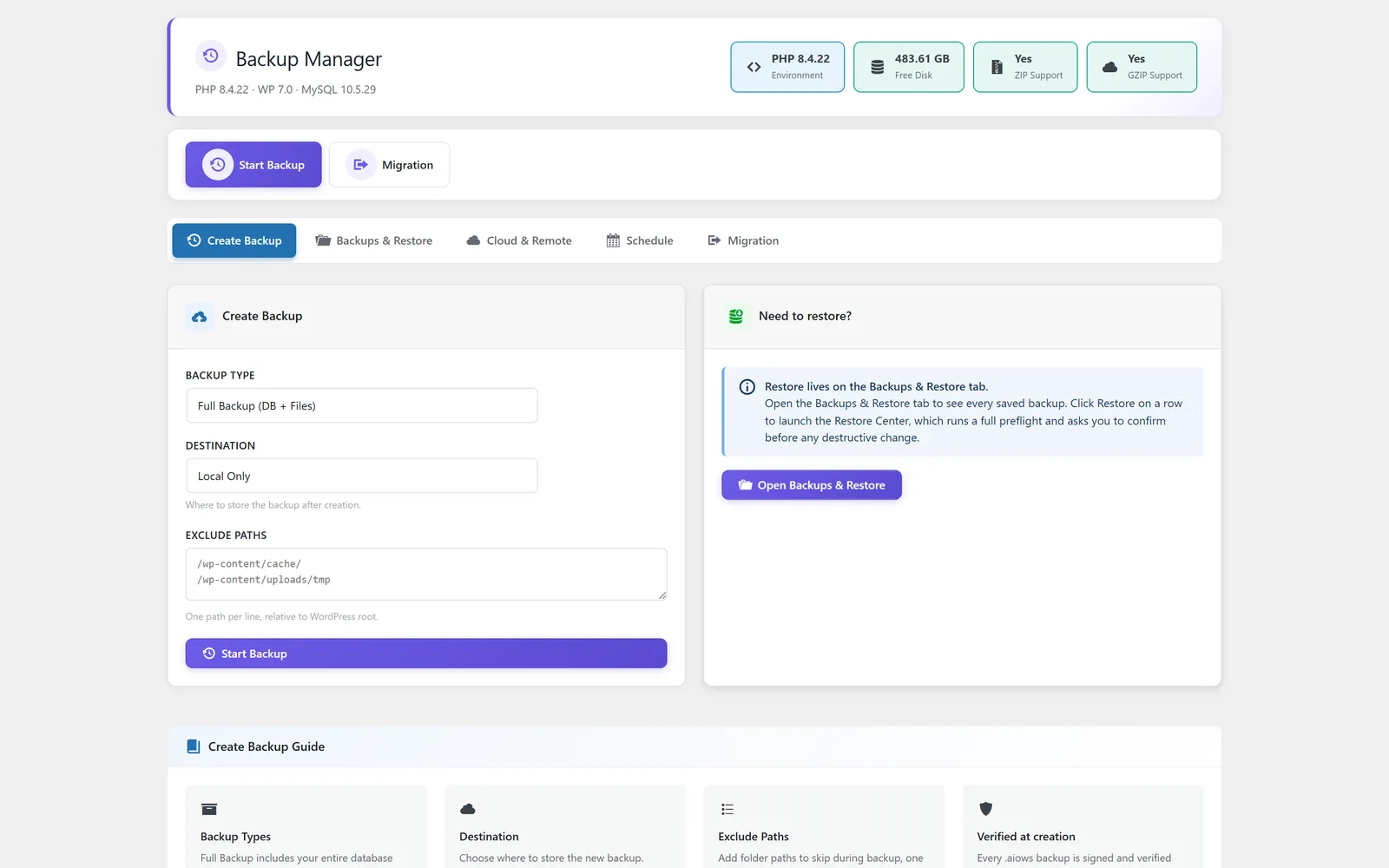
Reliable WordPress backups and restores from one dashboard
Backup Manager is the backup, restore, and migration layer inside All-in-One WP Settings. It creates full-site snapshots that capture your files and database together, so you always have a known-good copy to fall back on, and the same package moves a site to a new home. WordPress sites break during updates and edits, and moving a site by hand is slow and error-prone. With on-demand and scheduled backups, off-site storage, automatic retention pruning, and a guided restore, you get a dependable safety net. The same restore also handles migration: a full-site backup taken on example.com can be restored on example.com or on a different domain or server such as newexample.com. For a site-to-site transfer, the target site connects with a unique source key, lists the available backups, pulls the one you choose, and restores it in one click, and old URLs are rewritten to the new site address automatically, so you do not need Replace Manager for a standard Backup Manager move.
Best for: Site owners, freelancers, and agencies who want a straightforward way to protect WordPress sites with regular backups, off-site copies, and a reliable restore path before risky updates or migrations.
See Backup Manager in action
What you can do inside Backup Manager
- Create full-site backups that capture files and database together in one snapshot
- Run database-only or files-only backups when you need a focused copy
- Trigger an on-demand backup at any time and restore through a guided workflow
- Browse a local backup inventory with restore actions for every saved snapshot
- Send off-site backups to Google Drive
- Send off-site backups to OneDrive
- Store remote backups over FTP and SFTP
- Connect cloud storage providers so backup jobs write copies off your server
- Schedule automatic backups on a frequency you choose
- Apply retention rules that prune old backups automatically to control storage
- Restore a backup to the same domain, or to a different domain or server
- Transfer a site to another WordPress install through a unique source key
- Pull a selected backup from a connected source site and restore it in one click
- Rewrite old URLs to the new site address automatically during a migration restore
- Restore from any listed backup so recovery is a single guided action
Why Backup Manager matters
Recovery you can trust
Full snapshots of files and database together mean a restore brings back a coherent site state, not a half-matched set of pieces.
Copies kept off your server
Off-site backups to Google Drive, OneDrive, and FTP or SFTP keep a copy safe even when the server itself has a problem.
Set it and stay covered
Scheduled backups plus automatic retention rules keep fresh snapshots flowing and old ones pruned without manual cleanup.
One package for backup, restore, and migration
The same full snapshot that protects your site also moves it. Restore it to the original domain, or to a different domain or server, and old URLs are rewritten to the new address automatically during the restore, with no separate find-and-replace step for a standard Backup Manager migration.
How teams use Backup Manager
-
Before a major update
Run an on-demand full-site backup before updating the core, a theme, or plugins, then restore in one step if anything goes wrong.
-
Hands-off routine protection
Set a schedule and retention rule so the site backs itself up on a chosen frequency and trims older snapshots automatically.
-
Migrating to a new domain or server
Restore a full-site backup from your current site onto a new domain or server, such as example.com to newexample.com, and let Backup Manager rewrite the old URLs to the new address automatically as it restores.
-
Site-to-site transfer with a source key
Connect the target site to the source with a unique source key, list the available backups, pull the one you need, and restore it in a single click without moving files by hand.
-
Keeping copies off the server
Connect Google Drive, OneDrive, or an FTP or SFTP destination so a current backup lives somewhere separate from the live host.
Backup Manager guides
Step-by-step articles on setup, configuration and common problems.
Good to know: Backups are full snapshots rather than incremental, off-site backups require connecting that provider first, and very large sites depend on the resources your host makes available.
Backup Manager FAQ
Yes. A full-site backup captures your files and database together in one snapshot, and you can also run database-only or files-only backups when you want a focused copy.
You can send off-site backups to Google Drive or OneDrive, or store them on a remote server over FTP and SFTP. You connect the provider first, then point backup jobs at it.
Yes. You can schedule automatic backups on a frequency you choose, and retention rules prune old backups automatically so storage does not pile up.
Open the backup inventory, pick any listed backup, and follow the guided restore workflow to bring the site back from that snapshot.
Yes. A full-site backup can be restored on the same domain or on a different domain or server, and old URLs are rewritten to the new site address automatically during the restore. For a site-to-site move, the target connects with a unique source key, pulls the selected backup, and restores it in one click, so a standard migration needs no separate URL find-and-replace.
Not for a standard Backup Manager migration: it replaces old URLs with the new site address automatically while it restores. Replace Manager is for other situations, such as cleaning up a site you moved manually or with a third-party tool, or running a controlled find-and-replace outside the backup flow.
No. Each backup is a full snapshot rather than an incremental one, so very large sites depend on the resources your host makes available when a backup runs.
Yes — Backup Manager ships on every plan. Tiers differ only by the number of live production domains you can run (1, 3, or 5), never by which modules you get.
Backup Manager is included on every plan
Every plan includes all 15 modules. Choose a plan, then activate Backup Manager on your sites.