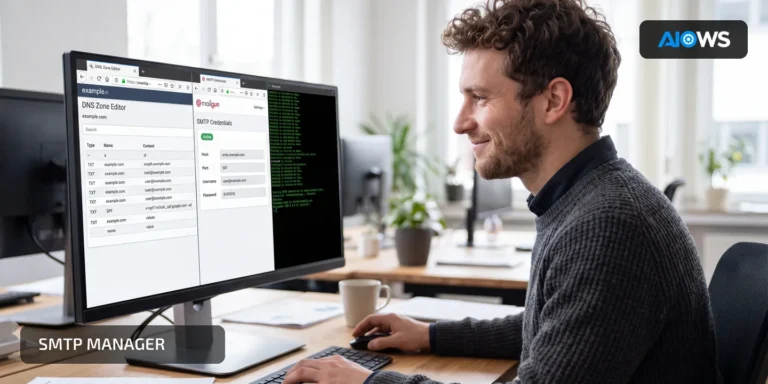
Mail starts flowing only after someone disables certificate verification. That may look like a fix, but it can leave WordPress trusting the wrong server or a TLS-inspecting proxy. The safe response is to identify which certificate WordPress actually receives, repair the trust path, and keep verification enabled.
This guide shows how to distinguish hostname, chain, clock, TLS-mode, and interception problems, then verify the result from the WordPress host.
What it means
An SMTP TLS certificate error means WordPress reached the mail service but could not verify its identity or certificate chain. The configured host must appear in the certificate’s Subject Alternative Name list, the server must present the required intermediate certificates, and the WordPress host must trust the issuing authority.
Port and encryption mode matter as well. Port 465 normally expects implicit TLS, while ports such as 587 commonly begin in plain SMTP and upgrade with STARTTLS. A mismatch can fail before authentication even begins.
A realistic WordPress example
A site connects to an SMTP alias supplied years ago. After a network change, the handshake returns a certificate issued to the provider’s canonical mail host. Disabling peer verification makes a test message pass, but it also removes the check that proves WordPress is talking to the intended service.
The administrator restores verification, switches to the documented hostname and matching TLS mode, and tests from the production server. If the unexpected certificate appears only on that network, the investigation moves to the proxy or security appliance instead of WordPress.
Why it matters and when to use it
Certificate failures happen after a network connection reaches TLS, so they narrow the search considerably. The exact message—hostname mismatch, expired certificate, unknown issuer, incomplete chain, or handshake failure—usually identifies the next owner: the mail provider, hosting provider, network team, or WordPress administrator.
Do not substitute an IP address for the SMTP host or add an unexplained certificate to the trust store. Both approaches can hide an identity problem. The goal is a valid chain for the documented host, not merely an encrypted connection.
Use this process when the error comes from TLS negotiation. Authentication failures, rejected senders, timeouts, and delivery problems require different evidence.
A straightforward route for beginners
- Save the current SMTP host, port, encryption setting, and any temporary verification override.
- Confirm the provider’s documented hostname and port. Check the server clock and update the operating system’s CA bundle if it is obsolete.
- Re-enable peer and hostname verification. From the WordPress host, inspect the certificate names, issuer, validity period, and complete chain.
- Correct the setting or ask the responsible provider to renew the certificate or serve the missing intermediates.
- Send a real WordPress-generated message and confirm both the SMTP response and controlled mailbox result.
The advanced route
Capture the handshake from the same host and network that run WordPress. Compare the configured hostname with the SAN list, and test with the correct SNI value. For STARTTLS, confirm that the server advertises the upgrade after EHLO; for implicit TLS, expect encryption from the first connection byte.
Inspect every certificate in the chain rather than only the leaf. A desktop may silently fill in a cached intermediate that is absent on the production server. Compare Not Beforeand Not Afteragainst UTC, and record the CA bundle version. If a corporate proxy replaces certificates, its private root must be authorized and deployed deliberately to the required systems.
Acceptance requires a verified handshake to the intended hostname, successful authentication, and one real message delivered through the normal WordPress path.
Risks, common mistakes, backup, and rollback
Never leave peer or hostname verification disabled in production. Avoid fixed IP addresses, arbitrary trust-store additions, and port/TLS combinations that differ from the provider’s documentation. These shortcuts can expose credentials or conceal interception.
Back up the SMTP configuration before changing it. If the repaired route cannot complete a verified handshake and authenticated send, restore the previous secure configuration; do not restore an insecure verification override. Record the certificate presented, test time, selected endpoint, and responsible person or team without exposing credentials.
How AIOWS helps:
AIOWS SMTP Manager
AIOWS SMTP Manager keeps the WordPress-side SMTP host, port, encryption method, and sender settings in one place. That makes it easier to confirm that a certificate test uses the same endpoint and TLS mode as the site’s actual mail route.
After the certificate chain or host setting has been corrected, use the module’s test and diagnostic context to check the WordPress transport and provider response. Follow with a genuine transactional message, such as a controlled password-reset notification, so the application path is verified as well as the connection.
The module cannot renew a provider certificate, update the server trust store, or change a network proxy. Those repairs remain with the mail provider, host, or network administrator. AIOWS helps keep the supported WordPress configuration and its test result clear while those external issues are resolved.
Related AIOWS articles
- WordPress Emails Going to Spam: 10 Proven Fixes
- WordPress SMTP Connection Timed Out: Causes and Fixes
- WordPress SMTP Connection Refused: How to Fix It
Conclusion and recommended route
Keep certificate and hostname verification enabled. Use the provider’s documented endpoint, repair the chain, clock, trust store, or authorized interception layer that caused the error, and approve the change only after the production WordPress host completes a verified TLS handshake followed by a successful real WordPress message send.