Favicon Manager for WordPress
Upload, preview, and replace your site favicon from wp-admin, with a built-in sizing guide for browsers and devices, no theme file editing required.
Set your WordPress favicon the right way, from wp-admin
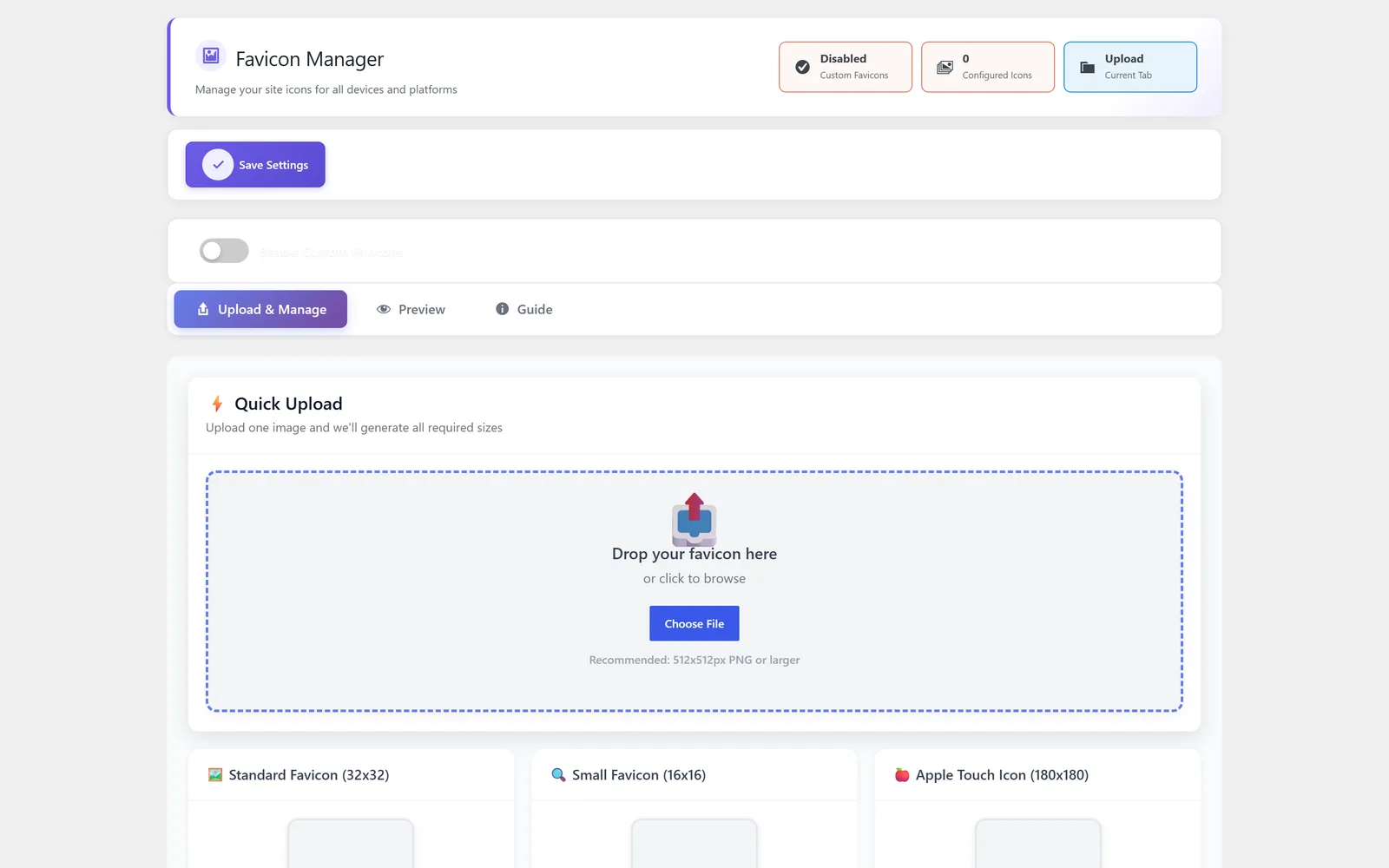
Favicon Manager is the WordPress favicon manager inside All-in-One WP Settings that lets you set the small icon shown in browser tabs, bookmarks, and device home screens directly from wp-admin. Getting a favicon right usually means hunting for the correct dimensions and dropping files into theme folders. This module solves that by handling the upload, giving you a live preview before you publish, and pointing you to the right sizes for the browsers and devices that matter. You replace the favicon in a few clicks without touching a single theme file. The result is a clear, on-brand icon you can manage entirely from the dashboard.
Best for: Site owners, freelancers, and agencies who want a polished, on-brand favicon set from wp-admin without editing theme files or wrestling with icon dimensions.
See Favicon Manager in action
What you can do inside Favicon Manager
- Upload and manage your site favicon directly from the wp-admin dashboard
- Live preview so you can see the favicon before you publish it
- Built-in sizing guide that shows the dimensions browsers and devices expect
- Built-in compatibility guide covering common browsers and devices
- Replace or swap the favicon at any time without editing theme files
Why Favicon Manager matters
Brand recognition in every tab
A clear favicon makes your site easy to spot among open tabs and saved bookmarks, reinforcing your brand at a glance.
No theme files to touch
You set and replace the favicon from this module instead of editing theme files, so the whole task stays inside wp-admin.
Right size the first time
The built-in sizing and compatibility guide removes the guesswork, so you prepare an icon that fits what browsers and devices expect.
How teams use Favicon Manager
-
Launching a new site
Upload your logo mark as a favicon and preview it before launch so the brand looks finished from day one.
-
Rebranding an existing site
Replace the old favicon with the new mark in a few clicks, with no developer or theme edits needed.
-
Handing off client sites
Agencies can set a correctly sized favicon from wp-admin without editing theme files, keeping the handoff clean and simple.
Favicon Manager guides
Step-by-step articles on setup, configuration and common problems.
Good to know: Favicon Manager handles the site favicon shown in browsers and on devices; it does not design or generate the icon artwork for you, so you bring your own image to upload.
Favicon Manager FAQ
No. You upload, preview, and replace the favicon entirely from wp-admin, so you never have to edit theme files to manage your site icon.
The module includes a built-in sizing and compatibility guide that shows the dimensions browsers and devices expect, so you can prepare the right image before uploading.
Yes. A live preview lets you check the icon before you publish, so you can adjust the image if it does not look right.
Yes — Favicon Manager ships on every plan. Tiers differ only by the number of live production domains you can run (1, 3, or 5), never by which modules you get.
Favicon Manager is included on every plan
Every plan includes all 15 modules. Choose a plan, then activate Favicon Manager on your sites.