The form submits, the green confirmation appears, and nothing reaches your inbox. That is the most common shape of Contact Form 7 not sending email, and the cause is almost always the same: the sender address in the form’s Mail tab.
This guide first separates whether the problem is in CF7 or in WordPress, then gets the Mail tab right.
First, separate CF7 from WordPress
Contact Form 7 does not send email itself. It hands the message to WordPress and WordPress sends it. So the problem can be in either of two places, and the fixes are entirely different.
The test:in the WordPress admin go to Users → Profile, change your email address temporarily and save. WordPress sends a confirmation email.
| Result | What it means |
|---|---|
| The confirmation arrived | WordPress can send; the problem is in the CF7 configuration |
| The confirmation did not arrive | WordPress cannot send at all; SMTP has to be set up first |
In the second case, stop reading here and configure your WordPress SMTP settingsfirst. However correctly CF7 is set up, nothing changes while WordPress cannot send.
The change only takes effect when you click the link in the email, so ignoring it leaves your profile untouched.
Contact Form 7 not sending email: the real cause
If WordPress can send but form emails do not arrive, the reason is the sender address.
On older CF7 installations, and on forms whose configuration has been edited by hand, the Fromfield carries the address of the person filling in the form. So the message is sent as visitor@gmail.com.
Here is the problem: you do not own that address. Your SMTP server connects as info@yoursite.comand then tries to send on behalf of someone else. The server refuses — or accepts, and the receiving server fails SPF validation and files it as spam.
Current CF7 versions fixed this for newly created forms: the default Fromvalue is now an address on the site’s domain. But existing forms are not repaired by an upgrade; a configuration stays as it was saved.
The fix is a two-line change: pin the sender to your own domain and move the visitor’s address to Reply-To. Replying still reaches the visitor, but the sending identity stays correct.
The Mail tab: the correct configuration
In the WordPress admin go to Contact → Contact Forms, open your form and switch to the Mailtab.
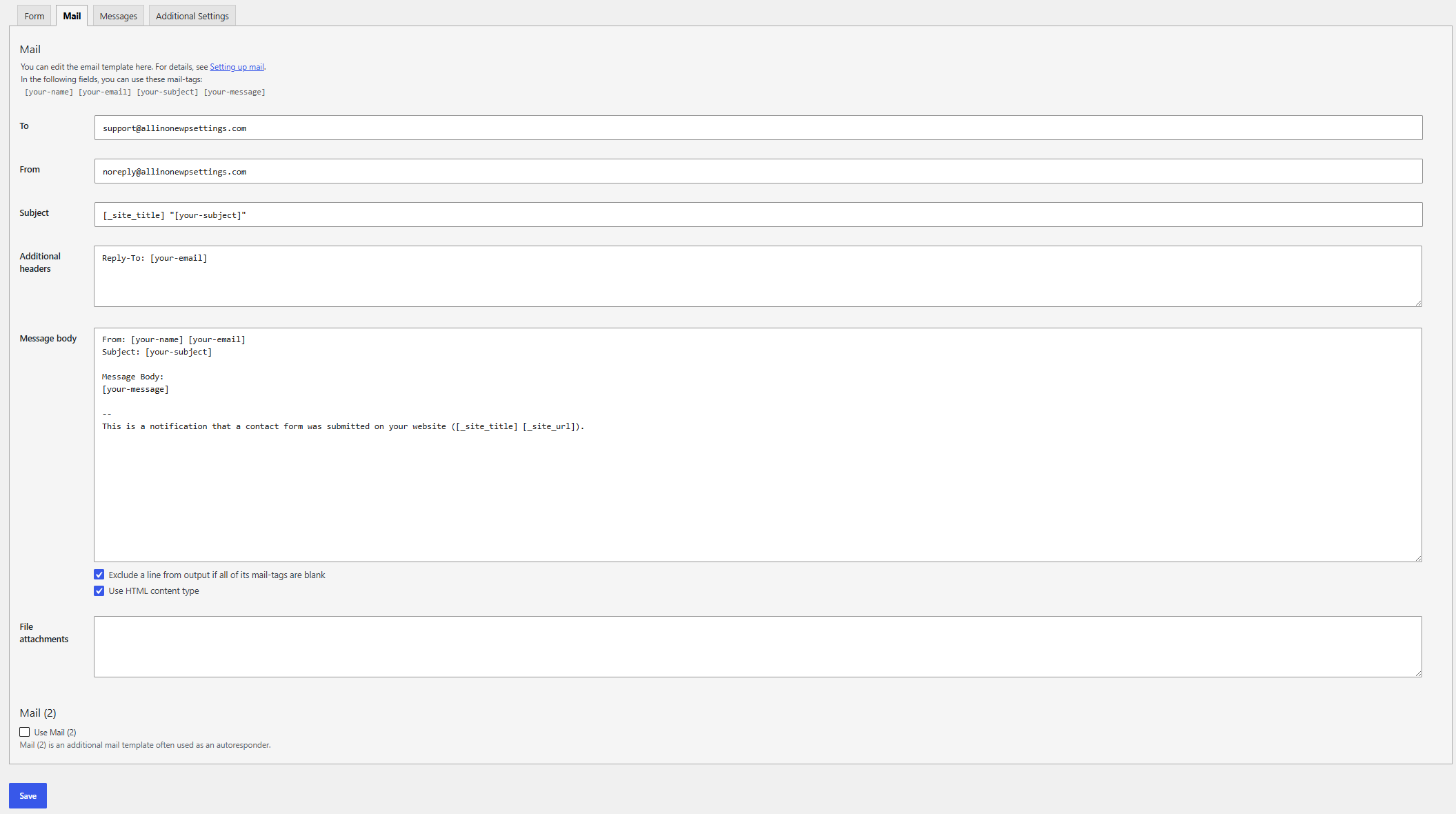
To:
[_site_admin_email]This tag uses the site’s administrator address. If you want it to go somewhere else, put the address in directly.
From:
[_site_title] <info@yourdomain.com>Replace info@yourdomain.comwith a real mailbox on your own domain. If you are using SMTP, this address has to match the mailbox you authenticate with.
Subject:
[_site_title] "[your-subject]"Additional headers:
Reply-To: [your-email]This line is the critical one. The visitor’s address goes here, and when you reply to the message it reaches them directly.
Message body:
From: [your-name] <[your-email]>
Subject: [your-subject]

Message:
[your-message]

--
This message was sent from the contact form on [_site_title] ([_site_url]).
The tags in square brackets have to match the field names in your form. Whatever names you used on the Formtab, use those here — if you used emailrather than your-email, write [email]. The available tags are listed at the top of the Mail tab.
Save and test.
Contact Form 7 not sending email while the green confirmation shows
CF7 shows the green confirmation once it assumes WordPress has accepted the message. It does not know whether WordPress actually delivered it.
So the green tick tells you this: the form validated and CF7 handed the message to WordPress. Everything after that is invisible to it.
Work through these:
The spam folder.The most commonly skipped step. Messages sent before the sender address was fixed are often there.
Is the address in the To field correct?A typo fails silently.
Is a security plugin intervening?Some security plugins treat form submissions as bot traffic and block them.
Is SMTP configured?WordPress’s default delivery path does not authenticate, and on most shared hosting it does not work at all.
The configuration error notice
When you save the Mail tab, CF7 sometimes shows a warning. The interface is in English, so the warning is too; above the tab you will see:
1 configuration error detected in this tab panel.And directly under the offending field, the reason. The most common is:
Invalid mailbox syntax is used.The most common causes:
The From field’s format is broken.That is what Invalid mailbox syntax is usedmeans. The address has to be either Name <address@domain.com>or a plain address@domain.com; a missing angle bracket or a stray space produces this error.
The sender address is not on the site’s domain.CF7 flags this too. The fix is the one above: use an address on your own domain.
An unused tag.If the Mail tab says [phone]and the Form tab has no such field, CF7 warns.
The To field is empty.It is required.
Do not ignore the warning. CF7 will still send the form, but the messages may not be delivered.
Verification
If you think you have fixed Contact Form 7 not sending email, run all four checks.
| Check | Expected |
|---|---|
| Fill in the form yourself | The message reaches the inbox |
| Press Replyon the received message | The recipient is the visitor’s address |
The From:line in the message source | Your own domain, not the visitor’s |
| Break the To address in the Mail tab, try again | No message should arrive |
The fourth proves the message is genuinely passing through the CF7 configuration. If it arrives despite a broken address, another plugin is intervening. Restore the correct address afterwards.
Test with an address at a different provider as well. Sending to your own domain can look fine because the message never leaves the server.
How AIOWS helps:
AIOWS SMTP Manager
The other half of Contact Form 7 not sending email is on the WordPress side: however correctly the form is configured, nothing changes if WordPress cannot send.
AIOWS SMTP Manager connects delivery to an authenticated mail server and matches the sender address to your domain. It keeps a send log, so you can see whether the message from the form reached WordPress at all and how the server replied — which is exactly the part CF7’s green tick cannot see.
For Gmail and Microsoft 365, EasyConnect reduces the OAuth setup to one step. When a test fails it also names the stage it failed at, which separates a problem on the WordPress side from one on the server.
Its limits, stated plainly:the module does not fix the configuration in Contact Form 7’s Mail tab for you. The sender address and the Reply-To setting belong to the form, and are done by hand with the steps in this article.
FAQ
Contact Form 7 is not sending email but other forms work. Why?
The other form plugin probably pins the sender address to the site’s domain automatically. On older CF7 forms that setting has to be made by hand.
Can I put the visitor’s address in the From field?
You can, but your messages will be rejected or land in spam. The visitor’s address belongs in the Reply-To line under Additional headers.
What is Mail (2) for?
It is the second template below the Mail tab, used to send an automatic reply to the visitor. It is off by default. The same sender-address rule applies there.
The form submits but shows a red error instead of the green confirmation.
That is a different problem, usually a rejection by the server. Check the sender address and the SMTP settings.
Does CF7 need a separate SMTP plugin?
No. CF7 uses WordPress’s own sending function; configuring SMTP at the WordPress level is enough.
How do the tags work?
The expressions in square brackets are the names of your form fields. The names you define on the Form tab and the ones you use on the Mail tab have to match exactly. The available tags are listed at the top of the Mail tab.