

You do not need a Gmail or Microsoft 365 account to send email from WordPress. Your hosting package already includes a mail server, and hosting SMTP settingslet you use it.
For most people on shared hosting this is the most practical route: no extra account, usually a higher daily limit, and the sender address is already on your own domain.
When hosting SMTP settings are the right choice
The sender address is already correct.With hosting SMTP settings you send from info@yourdomain.com, and that address belongs to your domain. Using Gmail introduces the risk of a sender mismatch.
No extra account is needed.The mailbox is already in your hosting package. No app password to create, no OAuth authorisation to complete.
The SPF record is usually already there.If your domain’s DNS is managed by the hosting company, the SPF record is generally created for you.
When they are not the right choice:if you send at high volume, or if the shared server’s IP reputation is poor. On shared hosting hundreds of sites use the same IP, and if one of them sends spam it affects all of them. In that case a transactional email provider is more reliable. If you are considering Gmail or Microsoft 365 instead, provider values and setup steps are in a separate guide.
Finding the values in cPanel
On cPanel-based providers the values are listed on one screen. Do not guess — read them here.
Steps:
- Log in to cPanel
- Under Email, open Email Accounts
- On the row for the mailbox you want, click the Connect Devicesbutton
- On the page that opens, find the Mail Client Manual Settingssection
Use the values in the blue box headed Secure SSL/TLS Settings (Recommended).
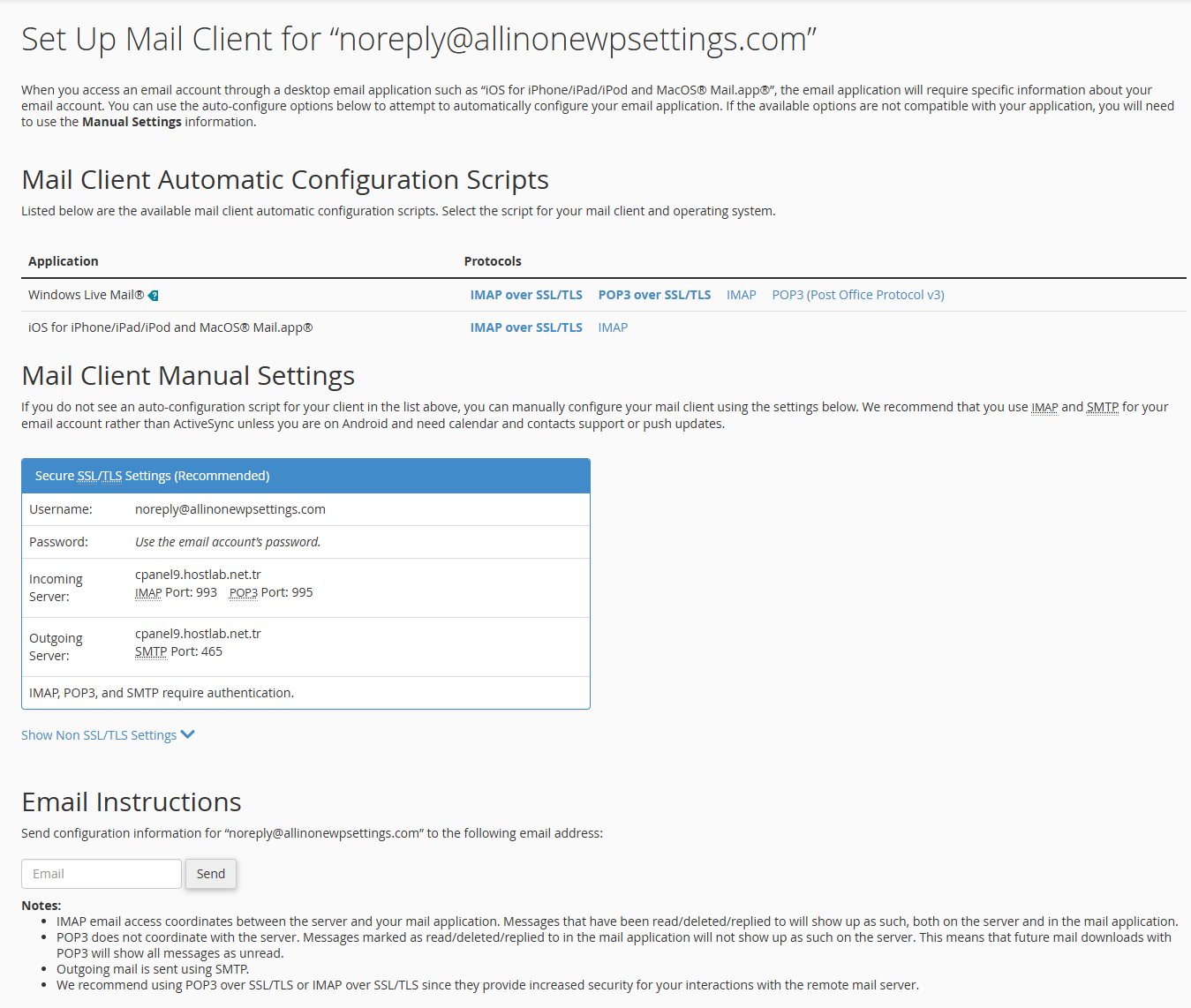
The fields you will see:
- Outgoing Server— the host name and the SMTP port
- Username— your full email address
- Password— the mailbox password
Screenshot that box and keep it; the values are specific to your server and will differ on another site.
Why cPanel sometimes shows a different server name
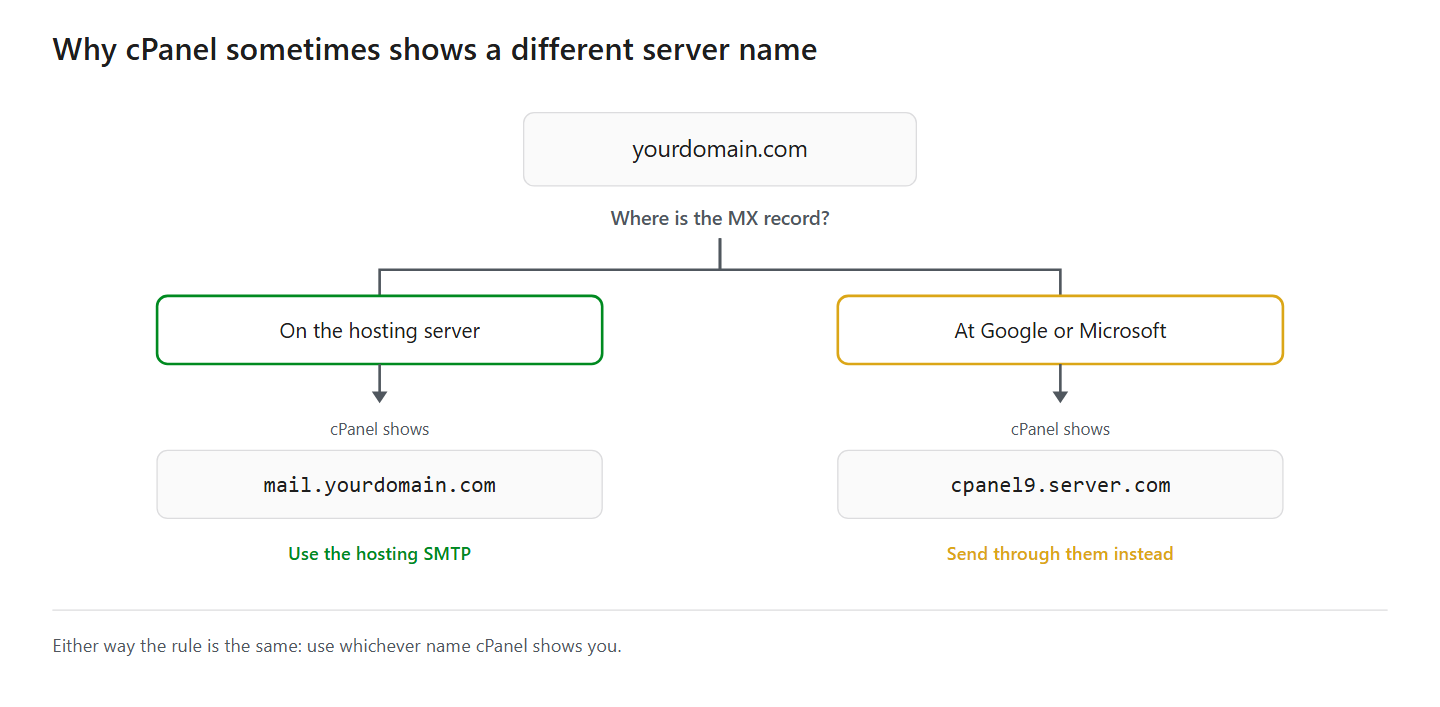
You may see one of two things on the Connect Devices screen, and the difference matters.
If you see mail.yourdomain.com,your mailbox is hosted on that server. The domain’s MX record points at your hosting server and cPanel can safely suggest that pattern.
If you see something like cpanel9.servername.com,your domain’s MX record points somewhere else — usually Google Workspace or Microsoft 365. Because the mail is not hosted on that server, cPanel cannot suggest the domain pattern and gives the server’s own name instead.
If you are in the second case, take a step back: if your mail is at Google or Microsoft, sending through them is the better choice. Using the hosting SMTP is technically possible, but the sending domain and the sending server diverge and SPF validation can object.
Either way the rule is the same: use whichever name cPanel shows you.Not the one you guessed.
Finding the values in Plesk
On Plesk-based providers the path is different and the settings are not gathered on one screen.
- Log in to Plesk
- Go to the Mailtab
- Click your mailbox
Plesk generally does not show the host name directly. As a rule mail.yourdomain.comworks, but if you hit a certificate mismatch you may need the server’s own name — that is covered in the certificate section.
The port values are standard in Plesk: 465 (SSL/TLS) and 587 (STARTTLS).
The hosting SMTP settings table
If you cannot find the value in the panel, these hosting SMTP settings patterns work on most shared hosting.
| Field | Value | Note |
|---|---|---|
| Host | Whatever cPanel shows | Usually mail.yourdomain.com, sometimes the server’s own name |
| Port | 465 | With SSL/TLS — what cPanel recommends |
| Port | 587 | With STARTTLS — the alternative |
| Encryption | SSL/TLS or STARTTLS | According to the port |
| Authentication | On | Required |
| Username | info@yourdomain.com | Full address, not just the local part |
| Password | The mailbox password | No app password needed |
| From address | Same as the username | A different one will be rejected |
The GoDaddy exception:on GoDaddy shared plans the mail.yourdomain.compattern does not always work. They route through their own relay and the values have to come from the account panel.
Entering them in WordPress
Once you have the values, open your SMTP plugin’s settings. The hosting SMTP settings map onto the same fields every plugin uses.
Host:the outgoing server name shown in the panel.
Port and encryption:SSL/TLS if you chose 465, STARTTLS if you chose 587. Getting this pairing wrong is the most common cause of a connection error.
Username:the full email address. Some providers want a short username, but most want the full address.
Password:the mailbox password. Not the hosting panel password.
From address:the address of the mailbox you authenticate with. A different address will be rejected by the server.
Save and go to verification.
Certificate mismatch: the most common problem
A certificate name mismatch is the error people hit most often with hosting SMTP settings, and the cause is usually a guessed server name rather than anything wrong with the server.
When you connect, the server presents an SSL certificate. That certificate is issued to a particular name; if you entered a different one, the connection is refused. The error reads as a certificate name mismatch, or a certificate that cannot be verified.
The fix is to use the name cPanel shows.The value on the Connect Devices screen is the one the server’s certificate matches; a name you guessed may not be.
If you have to use mail.yourdomain.comanyway, you can ask your hosting company for a certificate valid for that name too. On providers using Let’s Encrypt this is usually free.
Do not disable certificate verification.Some plugins offer the option and it looks like it solves the problem. In reality it leaves the connection open to interception — your mailbox password can be captured in plain text.
Verification
| Check | Expected |
|---|---|
| The plugin’s test email | Sends without an error |
| A send to an address at a different provider | Reaches the inbox |
Received:line in the message source | Shows your hosting server |
| Deliberately wrong password, test again | Must fail |
The second row matters: sending to your own domain is not enough, because the message never leaves the server. Send to a Gmail address or one at another provider.
The fourth proves SMTP is genuinely in use. If a test with the wrong password still reports success, the plugin is falling back to the old delivery path.
If messages send but land in the spam folder, the problem is not in the settings but in your domain’s reputation; for that diagnosis see the WordPress not sending emails guide.
How AIOWS helps:
AIOWS SMTP Manager
AIOWS SMTP Manager has a preset called Shared Hosting (cPanel / Plesk). Selecting it derives the host name from your own site — it arrives as mail.yourdomain.com— and sets the port to 465 with SSL.
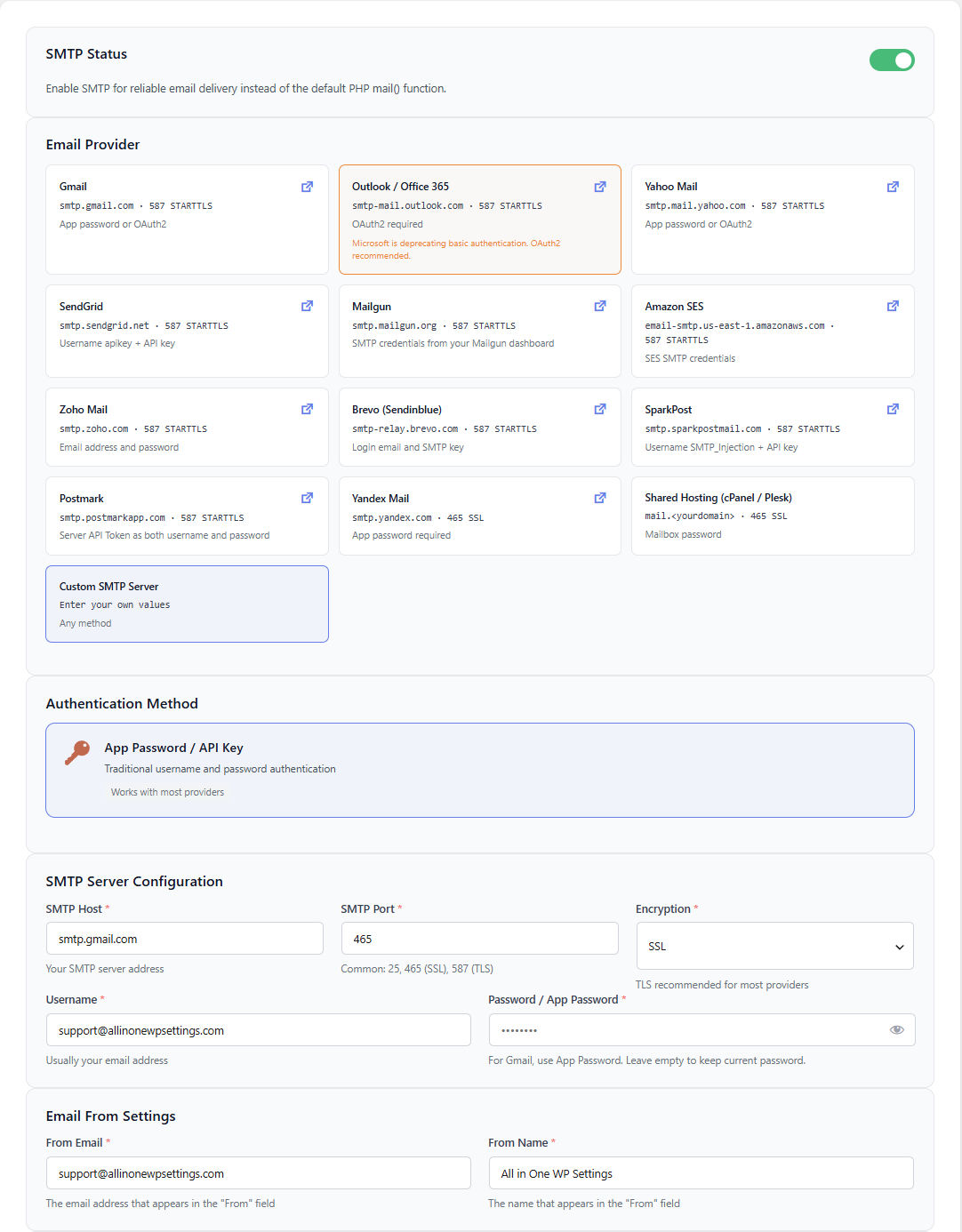
The card carries the MX caveat from this article on its own face: if your domain’s MX records point at Google Workspace or Microsoft 365, cPanel hands out the server’s own hostname and the certificate is issued to that name — in which case replace the prefilled value with whatever your panel shows.
The test tool checks each part of the configuration separately, and when it fails it names the stage. A certificate mismatch shows up at the TLS handshake; a wrong password at authentication. Those are different problems with different fixes.
It keeps a send log too, showing which message went when and how the server replied — the part of hosting SMTP settings that is invisible from the WordPress side otherwise.
Its limits, stated plainly:the module cannot add a certificate to your hosting company’s mail server, it cannot open a blocked port, and it cannot change the reputation of a shared IP. Those three belong to your hosting provider.
FAQ
Does AIOWS have a ready-made hosting preset?
Yes. The Shared Hosting (cPanel / Plesk) card derives the host name from your domain and sets the port and encryption correctly. If your MX record is at another provider you will need to replace the host with what cPanel shows.
Hosting SMTP settings or Gmail — which is better?
For low and medium volume sites the hosting SMTP is usually enough, and the sender address is already correct. At high volume the shared IP reputation can become a problem.
Should I enter the full address as the username?
On most providers, yes. The configuration screen in cPanel shows which format is expected.
What happens if I change the mailbox password?
You have to update the SMTP settings in WordPress too, or sending stops and you get a 535 authentication error.
mail.yourdomain.comdoes not work. What should I do?
Check the Connect Devices screen in cPanel. If a different server name is listed there, use it — that usually means your domain’s MX record is at another provider.
Do I still need an SPF record with hosting SMTP?
If your domain’s DNS is managed by the hosting company the SPF record is usually already there. If it is managed elsewhere you have to add it yourself.
Is there a daily sending limit?
Most shared hosting has an hourly or daily limit. It is in your provider’s terms of use; when it is exceeded, sending stops temporarily.


