The password reset email never comes. The contact form says “sent” and nothing reaches your inbox. The order notification does not get to the customer. WordPress not sending emailslooks like one problem, but those three situations have different causes and different fixes.
This guide helps you identify which one you have, then takes you to the branch that applies.
Identify the symptom first
Before anything else, run a two-minute test. The result decides which section you read.
The test:in the WordPress admin, go to Users → Profile, put an address you can read into the email field and save. WordPress sends a confirmation email to that new address.
| Result | Where to go |
|---|---|
| Nothing arrived, not even in spam | Nothing arrives at all |
| It landed in the spam folder | It arrives but lands in spam |
| It reached the inbox | Some send, some do not |
The third result tells you something important: WordPress can send. The problem is in a specific plugin, a specific recipient, or a specific event.
This test is safe: the change only takes effect when you click the link in the email. If you do not click it, your profile stays exactly as it was and there is nothing to undo. Ignoring the email is enough.
WordPress not sending emails: where the chain breaks
To find the problem you need to know the chain.
When WordPress sends email it calls wp_mail(). That function uses the PHPMailer library. PHPMailer hands the message to PHP’s mail()function by default, which passes it to the local delivery agent on the server. That agent tries to reach the recipient’s mail server.
Four links: WordPress → PHPMailer → PHP mail() → server → recipient.
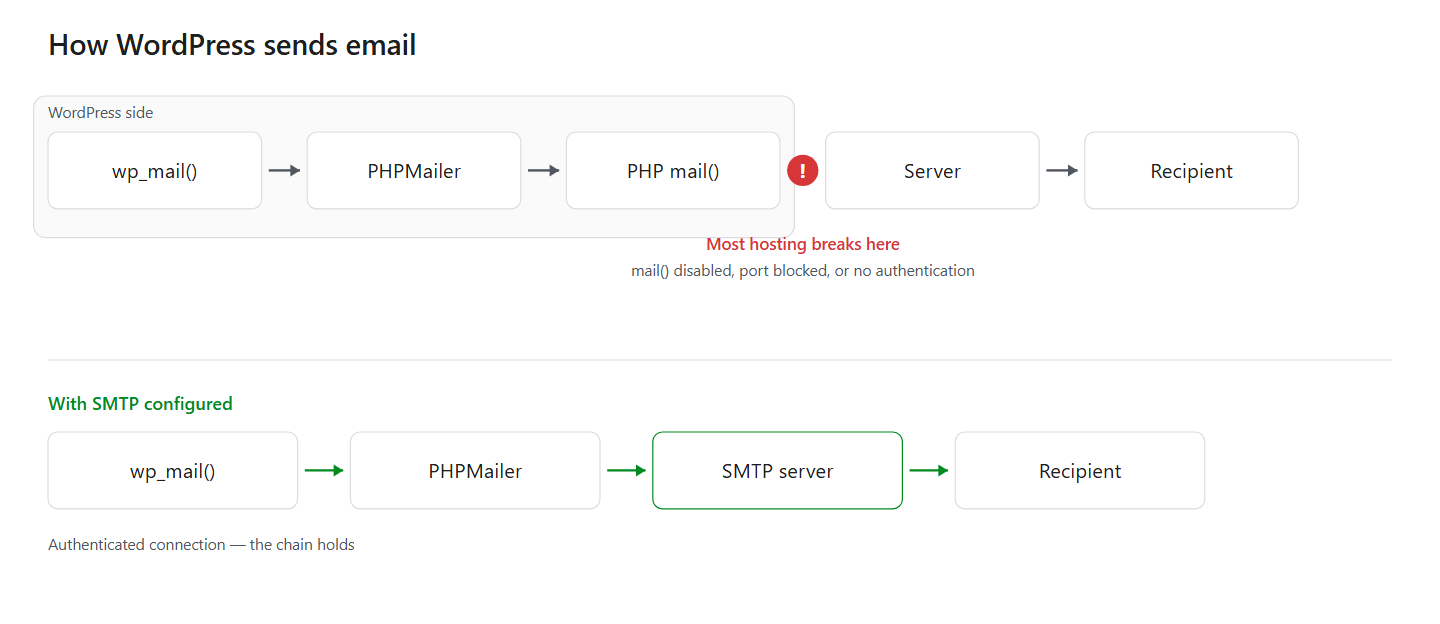
The breaks usually happen at the third and fourth links. Most shared hosting providers disable mail()or block outbound traffic, to stop spam. Even where it works, the message goes out without authentication and the receiving server does not trust it.
That is why the permanent fix is to change the chain: connect PHPMailer to a real mail server instead of the local agent. That is SMTP.
Nothing arrives at all
WordPress is not sending emails and the test message is not in spam either. Work through these in order.
Is mail()disabled?Ask your hosting provider’s support, or if your control panel has a PHP info page, look at the disable_functionslist. If mailis there the function is off and no plugin can change that.
Is the outbound port blocked?Providers almost always block port 25, and some close 587 and 465 as well. When that is why WordPress is not sending emails, configuring SMTP will not help either; you need the provider to open it.
Has a plugin intervened?Security plugins, maintenance-mode plugins and some caching plugins can block sending. Disable them temporarily and repeat the test.
Is a filter cancelling the send?Theme or plugin code can hook wp_mailand stop delivery. Switch to a default theme and test; if it works, the problem is in the theme.
If all four are clean, the cause is almost certainly missing authentication and the fix is SMTP.
It arrives but lands in spam
Here WordPress not sending emails is the wrong description: the message is being sent. This is a reputation problem, not a delivery one. The message reaches the recipient but is not trusted.
Is the sender address on your domain?Sending from something like noreply@gmail.comlooks like forgery to a receiving server. The sender address has to be on your site’s domain.
Is an SPF record defined?SPF declares, through DNS, which servers may send on behalf of your domain. Without it the receiving server cannot verify anything.
Is there a DKIM signature?DKIM proves the message was not altered in transit, and works alongside SPF.
Is the content triggering filters?Heavy capitalisation, many exclamation marks, shortened links and messages that are a single large image all trip filters.
Configuring SMTP solves part of this — the message now leaves an authenticated server. But you will not get the full result without adding SPF and DKIM records to DNS.
Some send, some do not
The most confusing shape of WordPress not sending emails, and usually the easiest to fix.
The test works, the form does not.The most common variant. The form plugin puts the visitor’s address in the sender field. You authenticate as info@yoursite.combut the message is sent as visitor@gmail.com, and it is rejected.
The fix: in the form settings, fix the sender to an address on your own domain and put the visitor’s address in Reply-To. Replying still reaches the visitor, but the sending identity stays correct. Contact Form 7has a guide of its own.
The admin gets it, the customer does not.The recipient’s mail provider may be rejecting the message. Sending to your own domain looks fine because the message never leaves the server. This is where missing SPF and DKIM show themselves.
Some events never fire.Order emails are sent on specific status changes. The email you are waiting for may never have been triggered — that is a configuration problem, not a delivery one.
Scheduled emails do not go.WordPress runs some jobs on its own scheduler, and that scheduler runs when someone visits the site. On low-traffic sites the jobs wait in a queue.
The permanent fix for WordPress not sending emails
Most of the branches above lead to the same place: WordPress’s default delivery path is not reliable.
Configuring SMTP connects PHPMailer to a real mail server instead of the local delivery agent. The message now leaves an authenticated source, the receiving server trusts it, and deliverability improves markedly.
You need four values: host, port, encryption type and credentials. For real values by provider and a step-by-step setup, see the WordPress SMTP settings guide.
Verification
If you think you have fixed WordPress not sending emails, run all four checks before you trust it.
| Check | Expected |
|---|---|
| Profile email change confirmation | Reaches the inbox |
| Contact form submission | Reaches the inbox |
Received:lines in the message source | Show the mail server you configured |
| Test with wrong credentials | Must fail |
Do not skip the last one. Put a deliberately wrong password into the SMTP settings and test. If the test still reports success your message is not going through SMTP — the plugin has fallen back to the old path and nothing has been fixed. Restore the correct password afterwards.
Send to an address at a different provider as well. Sending to your own domain can look fine because the message never leaves the server.
How AIOWS helps:
AIOWS SMTP Manager
The hard part of SMTP setup is not entering the values, it is arranging the authentication. Gmail and Microsoft 365 no longer accept an account password; you have to create an app password or complete an OAuth authorisation.
The OAuth route means creating a project in the Google Cloud Console, configuring the consent screen, generating credentials, defining a redirect URI, copying the keys into the plugin and completing the authorisation flow. Fifteen steps, twenty minutes, and again from scratch on every site.
EasyConnect in AIOWS SMTP Manager reduces that to one link: it picks your account, you grant permission, and the connection is made. The module also ships host and port values for thirteen providers — shared hosting and Yandex included — and keeps a send log showing which message went when.
When a test fails it names the stage it failed at: DNS resolution, connection, TLS handshake or authentication. That distinction points directly at which branch of this article you are in — and it is usually the fastest way to find out why WordPress not sending emails has become your problem today rather than last week.
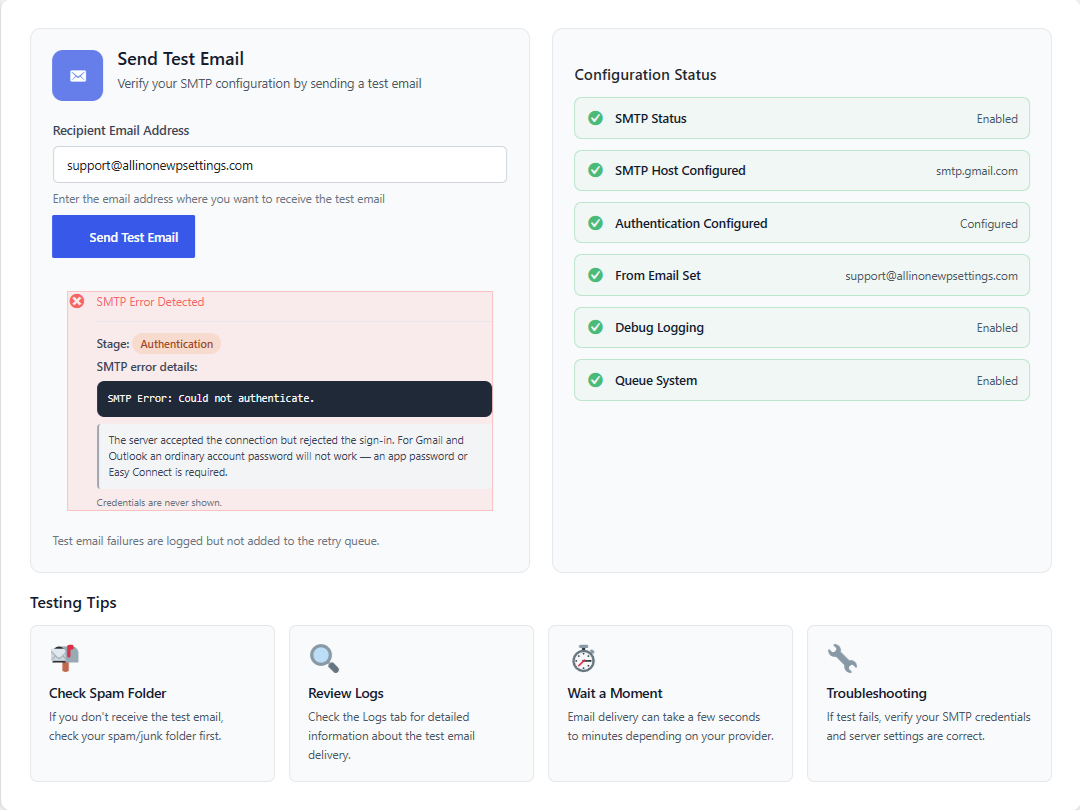
Its limits, stated plainly:the module cannot re-enable a mail()function your hosting provider has disabled, it cannot open a blocked port, and it cannot write your domain’s SPF or DKIM records into DNS for you. Those three need you or your provider.
FAQ
WordPress says “email sent” but nothing arrives. Why?
WordPress only knows that it handed the message to the server, not that it was delivered. The server may have dropped it silently, or the recipient rejected it.
WordPress is not sending emails — do I have to install an SMTP plugin?
Not strictly, but in practice yes. WordPress’s default delivery path does not authenticate, so your messages either do not arrive or land in spam.
Can I use my Gmail address as the sender?
Don’t. The sender address should be on your site’s domain. Sending from a Gmail address is treated as forgery by receiving servers.
My host blocks the SMTP ports. What can I do?
Try 465 instead of 587. If both are closed, ask your provider to open them; if they will not, use a transactional email service that sends over an API.
The test email works but form emails do not.
The form plugin is putting the visitor’s address in the sender field. Fix the sender to an address on your own domain and put the visitor’s in Reply-To.
Emails only fail to reach some recipients.
The recipient’s provider is rejecting them. Check your SPF and DKIM records; without both, some providers will not accept the message.